Wednesday, October 23, 2019

Closed Captions for Google Slides


Hello, I'm still around and I'm back to offer a new tech tip this week. I am a fan of Google Slides and it has been a tool I've used for a long while. You can do some fantastic things in Google Slides by including images, art, drawings, animations, video and tons of text, but it can't replace what the presenter has to share in person.  For those that may be viewing the presentation later or those that may be hearing impaired, they could possibly be losing out on important details.


However, now there is a feature within Google Slides that allows you to turn on Closed Captioning while you are presenting your Google Slides.  Yes, it has been staring me down all along and it took the right question from one teacher to open my eyes to a simple feature which automates closed captioning making your presentation accessible to everyone. When presenting, you will see your presenter toolbar at the bottom left of your slide.  Simply click on "CC" to enable auto closed captioning while you speak during your presentation.  Just make sure you are standing close enough to your microphone.  You can also screen record your presentation so you can save the closed captioning to share with others.  
two thumbs up
For now it works with spoken English, but I hope to see other languages in the future. Please feel free to share other closed captioning tips and tricks you would recommend in the comments below.  I'd love to see what everyone is using to make their slides, videos, etc. more accessible for students.
~Rosie F. 


Monday, May 6, 2019

TCEA Membership for Teacher Appreciation Week

Hello All! Happy Teachers Appreciation Week to all educators. This year the folks at TCEA (Texas Computer Education Association) are doing something fabulous for educators. Read their announcement below!
They say nothing’s free. But during Teacher Appreciation Week, a number of great, no-cost opportunities to reward educators for their hard work will pop up in shops and on social media. We wanted to make you aware of one particularly amazing deal ahead of time, to ensure you can take advantage of this offer.

From May 6–10, 2019, you can get a one-year membership to TCEA absolutely free!

What is TCEA and why should you join? It’s a Texas-based, global nonprofit; a member-based organization that supports the use of technology in education, provides top-notch professional development, and hosts world-class events, including the TCEA Convention & Exposition. Since 1980, TCEA has worked to develop digital learning knowledge and access in PreK-16 education.

As a grassroots organization, TCEA advocates for the smart use of technology in education based on the interests of its thousands of members: teachers, administrators, librarians, CTOs and technologists, and ed tech aficionados. As a member, you can get 24/7 access to webinars and gain CPE credit, join an online community sharing best practices, and become a leader on your campus or in your district.

But that’s not all. For more about the benefits of your free membership, and to sign up, check out https://tcea.org/teacher-appreciation/.

In addition, you can now join one, some, or all of TCEA’s SIGs (Special Interest Groups) for free as well. The SIGs are special communities of educators who share a common job role (librarian, CTO/technology director, instructional/technology coach) or ed tech interest, such as robotics or virtual learning or Technology Applications. You can find out more at https://tcea.org/membership/sigs/.

Take advantage of this free way to up your teaching, learning, and leading game today!

Now, head on over to TCEA's site and get your free membership to enjoy the many learning opportunities and benefits their yearly membership offers.  

~Rosie F.


Friday, February 15, 2019

Novel Effect: Make Storytime Magical

I was so excited to try out Novel Effect that I downloaded it while a passenger in the car and tried it immediately with my family.  I loved it instantly.  I knew immediately that elementary teachers, librarians, and families with small children would not only love this app, but need it immediately.  So what is it?  Put simply, you read your child's book while running Novel Effect and you will have music and sound effects that are timed perfectly with your story.  It brings your stories to life.  You can use it with many of your favorite children's book and they are adding more titles.  If you're like me and decide to try it while on the move and without a children's book handy, you can also use an eBook that you have on your device.  Watch this short video to learn more about Novel Effect. 


You can currently find Novel Effect in the Apple App Store for FREE (yes, that's my favorite word.) The Android version will be coming soon.

Share your thoughts about this amazing little app in the comments below.
~Rosie 


Thursday, January 10, 2019

Create New Google Docs On The Fly

Today, I have an easy peasy trick you can use to create brand new Google docs, sheets, slides, forms and sites right from your Google Chrome's omnibox.  Simply add ".new" to one of the following terms:"docs", "sheets", "slides", "forms", or "sites".  It takes a total of two seconds to get that typed in and you are ready to start editing your new Google creation.  See it in action below and give it a try.  

Hope you find today's tip useful.  Let me know what you think in the comments below.

~Rosie F.

Thursday, December 20, 2018

TechMas Tips #11&12: Math is Visual and Adobe Spark


So, we have reached the end of our TechMas tips and I'm sure most teachers will be too exhausted to catch these last two tips.  However, I hope you will give both of these tools a try in the new year.  

TechMas Tip #11: Math is Visual
TechMas Tip #11 is a website, Math is Visual, that was created to help build conceptual understanding of mathematics through the use of visuals.  The site contains videos, images and resources to help teachers, parents and students. 

The following video shows the Math is Visual creator, Kyle Pearce, using the site with his own three and five year old children.


Math is Visual is a great website to bookmark if you're an elementary or middle school teacher that is looking for some new ideas or material.  Even if you don't find any material to use, you may very well be inspired to create similar material for your lessons.

TechMas Tip #12: Adobe Spark for EDU
I have been a fan of the Adobe Spark suite of free tools for a while now.  There are three apps included in the suite to help you communicate ideas easily and with style.
All apps are created to work on mobile devices, so you can create on the go or students can quickly create a post, page or video right from their chromebook or iPad.


The suite is free to use, but you must have an Adobe ID to log in. Give it a try and share in the comments how you would use it in your classroom.

Happy TechMas everyone!  I hope you've enjoyed the tips this season and will find one that works for you.

~Rosie F.

TechMas Tip #10: Santas Sleigh Chrome Extension & Others

Today I have a fun, festive tip for anyone using Google Chrome.  TechMas Tip #10 includes a Google Chrome extension called Santas Sleigh.  All you need to do is install the extension and your pages will show Santa and his reindeer flying across the top.  It's easy to hide or remove the extension once you tire of the holiday spirit.


Here are a few other Chrome apps and extensions you can add for the holiday season.

Christmas Countdown New Tab Page - every time you open a new tab with this extension installed, you will see an updated countdown to Christmas.

Christmas Coloring Game Chrome app - Choose a coloring page and start coloring away.


Learn Your Christmas Carols Chrome app - Handy little resource for Christmas carol lyrics.  You will also be able to find videos, MP3s and karaoke items.

Enjoy!
~Rosie F.

Wednesday, December 19, 2018

TechMas Tip #9: Made With Code

I have to admit this is my favorite TechMas Tip I've shared so far.  Today, I want to share the Made With Code website with you as my TechMas Tip #9.  Unfortunately, it is widely known that girls start out with a love for technology and science, yet by the time they reach their teens they have lost that passionate curiosity.  It is something I fiercely want to see changed, because I know we will be losing half of our talented and gifted scientific minds simply because girls don't believe that science and technology is for them.  Learn more about the numbers and why it's so important for girls to code here.


One of the projects that is available for the holiday season allows you create your own Holiday Emoji scene.  You will use Blockly to code the scene, which is perfect for newbies.  You can switch between viewing the scene and viewing the code.  For first time coders, there are simple instructions to help you through the project. So, anyone can be successful with this activity.  Once complete, you can share on social media or download the file to use in other projects.  


In addition to the neat projects on their site, you can find information on mentors, community and partner information, and even resources to host your own party.

Happy Holidays, Coders!

~Rosie F.

Tuesday, December 18, 2018

TechMas Tip #8: NewseumED

So, how many people have had the opportunity to visit the Newseum in Washington, D.C? It has been touted as one of the best interactive museums in the city and a must stop for anyone visiting our country's capital. Today's tip comes to us from the same folks. NewseumED.org offers free resources such as an incredible online collection of primary sources, news artifacts, and lessons.  Their online tools make history, civics and media literacy relevant to students.


You can find material suitable for grades 3rd-12th, as well as post secondary, educators and adults. You can also search by topic, grade, type of ed tool, by date or even by century. You can also search through their EDCollections. Once you find a lesson, you can find instructions, materials and downloads.  You can also find debate topics and positions, discussion questions, and evidence to support your position.  I encourage you to explore the site regardless of what subject you teach.  You will not be disappointed.

Learn more about this great resource here.

~ Rosie F.


Monday, December 17, 2018

TechMas Tip #7: Storybird


Today's tip is loved by librarians everywhere and is a must have tool for your digital storytelling projects. Storybird lets you create a visual story within seconds. Yes, it's that easy. Storybird curates artwork from illustrators and animators and then inspires young writers to create stories. Educators in more than 400,000 classrooms use Storybird to help students build literacy skills while creating beautiful books.


Storybirds are stories that you create on your own or with others. You choose a collection of artwork. Then, you place the pictures on the pages and write the story. On Storybird, you can create picture books, longform books and poetry. These stories can be embedded into a blog or site and you can also print the books or use them as a fundraiser.


Teachers are able to create free accounts for students. They can also set up classes and assignments for students.

Storybird reviews all the storybirds that are published. All stories go through an approval process, so you can rest assured that content is appropriate for your students.

I found Storybird to be an application that encourages deep thinking while simultaneously giving students the boost they need to get started with a writing project.

Explore it and try to create your own winter themed story to share with others.

~Rosie F.


Friday, December 14, 2018

TechMas Tip #5&6: Common Sense & Informed Delivery

Today, I'm sharing two different resources that will be useful not only for teachers and students, but parents and advocates of kids' well being in this digital age.  I'm starting with Common Sense, "an independent nonprofit organization dedicated to helping kids thrive in a rapidly changing world."  
TechMas Tip #5: Common Sense
Common Sense has been around for quite some time now and I know I share it every year, but as passionate as I am about the importance of digital citizenship and cyber security, it deserves to be on this list.  Common Sense has a complete K-12 Digital Citizenship curriculum for educators.  They include Spanish materials, as well.  This year they are rolling out an updated digital citizenship curriculum in phases to meet the needs of our ever changing digital world.  Below are the launch dates for the new lessons.

Not only does Common Sense offer a thorough Digital Citizenship curriculum with lesson plans, videos, activity sheets, etc. they offer EdTech reviews and resources, professional development, and a blog to keep you on top of everything relating to educational tech. 

In addition to all the resources that Common Sense offers for educators, I love that they provide a wealth of information for parents. I admit even in though I'm in the educational technology realm, I still don't know everything.  Having a middle school daughter has taught me that, for sure.  I love that they review movies, TV programs, apps, and games.  

So, the next time your student or child asks to download an app, you can read the Common Sense reviews and make a decision about what is best for your child at their age.  There is also an Advice for Parents section that covers everything from cellphones and screen time to mental health and technology addiction.  I always recommend that teachers share this information with parents. Parents will find a Latino section with materials in Spanish. It's a valuable resource in a digital world that changes so quickly.  

TechMas Tip #6: Informed Delivery

I want to preface this little tech tidbit by mentioning that this handy dandy little app is NOT educational.  However, being that it is the holiday season and most teachers live at school and are unable to be home to see what arrives by mail, I thought it would certainly be useful.  Today, when everyone is so nervous about packages being left on porches or mail being taken from their mailboxes, I thought I would share the USPS app, Informed Delivery.  You can sign up for free.  Simply create an account and verify your identity, then view notifications on your phone, tablet, or computer.  You can digitally preview the mail that will be landing in your mailbox that day which I think is awesome.  If you are expecting something important and you see that it should've been delivered on that day, then you can notify them that you are missing mail just by checking off a box. Having received a neighbors mail accidentally on several occasions, I understand how frustrating it can be when you don't receive the mail you are expecting.  In addition to mail, Informed Delivery will let you know when you have packages being delivered using USPS Tracking information.  

Preview your mail pieces.


View Package Tracking info.
It's something I've been using for a while now and I've found quite convenient.  I feel safer when I know that I've received everything that was intended for my household.  Hopefully, both of today's tips will empower you to stay informed in our ever evolving digital world.

Let me know what you think in the comments below.

~ Rosie F.


Thursday, December 13, 2018

TechMas Tip#4: ReadWorks, Free Reading Lesson Plans


Today's tip is a website, ReadWorks.org.   It's a great service that provides teachers with free reading lesson plans. Readworks.org can be used in classrooms from Kindergarten to 12th grade.  Lessons are standards-aligned and if you choose not to use their lesson plans, you can simply search their many fiction and non-fiction articles to customize your own classroom experience.  All articles are listed with a lexile score and suggested grade level and are easy to find with the search feature.

There are approximately 120 K-12 articles that are winter-themed, which is perfect for the holiday season. There are articles that have connections to topics in science, language arts, and social studies.  They are accompanied by lists of key vocabulary terms and suggested comprehension and/or discussion questions.

This year ReadWorks integrated Google Classroom into their product, so now you can distribute articles and comprehension questions via your digital class. I know there will be some teachers that will immediately ask if there is content available in Spanish. Unfortunately, there is not, BUT ReadWorks recently developed extra supports for English Language Learners during the Article-A-Day routine. To learn more you can watch this video.

Sign up to discover what is available and take advantage of the excellent resources you will find on their site.

Let me know what you think about this resource in the comments below.

Happy Reading!
~Rosie

Wednesday, December 12, 2018

TechMas Tip#3: Winter Magnetic Poetry with Google Slides


Does the chilly weather get your students a little over-energetic?  This is the best opportunity for you to take advantage of those creative and active minds.  Today's TechMas Tip comes to you via the Shake Up Learning blog, who created this awesome Google Slides template for Winter Magnetic Poetry.

There are over 100 tiles in the template and a word list is included on slides two and three.  You or your students can add more text boxes or remove existing tiles in order to adjust for vocabulary levels.  I do have to note that when you add a text box it may not look exactly like the original tiles.  No big deal, though. Creativity has no limits, right? You can either use this as a collaborative activity or an independent activity.  You could also use it as a writing prompt.  Regardless of how you decide to implement this in your classroom, I'm sure no two poems will be alike.

Share some of your students best creations via Twitter and be sure to use hashtag #TechMasTips and tag me, @rfluegel. Give Kasey Bell from ShakeUpLearning a shout out, as well @ShakeUpLearning,

Enjoy!
~Rosie

Tuesday, December 11, 2018

TechMas Tip#2: AutoDraw

Our second TechMas Tip is a cool little drawing tool called AutoDraw. I admit, I was drawn in by the fact that it uses artificial intelligence to try to predict what you are trying to draw.


However, I asked myself is there any educational value in it? As a visual learner and someone who constantly doodles when trying to focus, I have to say, YES, there are a few benefits for your classroom.

As educators we have read about the value of visualization, dual coding and nonlinguistic representation and this extends not only from our pre-reading students, but all the way to any adult learner.  If you want students to add doodles to their notes, yet they get frustrated their own drawing skills, then this is the tool for them.  If you enjoy adding icons or illustrations to your classroom materials, but don't have the time to find the perfect image, this tool can also help.  Other than that, I can see how AutoDraw can be used as a preferred activity if you have students who finish work quickly.  If students need illustrations for projects, videos, or book, AutoDraw can help them create those, too.  Being that it is a very simple tool, it does lack the capability to collaborate with others or save multiple drawings.  However, students can share or download their drawing and did I mention, it's free!

Bottom line, it has some benefits for the classroom, but it is a cool tool, too.

Have fun with your holiday doodles. Feel free to share your holiday creations with me in the comment section below.

~Rosie


Monday, December 10, 2018

TechMas Tip#1: XtraMath

Since we are in the thick of the holiday season, I thought it would be a perfect time to share a few Tech Tidbits with you.  I know it's been a while since my last post, but I do still love to share some tech goodness with you.  With that being said, let me start with my first share of the holiday season, XtraMatha free web-based math fact fluency program that is designed to help students master addition, subtraction, multiplication and division facts.

I know what you're thinking, "A math fact program, really?"  Well, give me a minute.  Core math facts are the building blocks of a child’s education and essential for success with fractions, decimals, multi-digit algorithms and higher level Math. XtraMath is based on the assumption that students who regularly practice will quickly and easily recall answers when needed, freeing up mental resources for more complex problem solving.
Image result for xtramath

What really won me over is their selection of languages, in particular, English ASL.  Yes, students can now get their instructions in American Sign Language. The student activities take less than 10 minutes each day and can easily be worked into a student’s daily routine. If needed, regular reports can be emailed directly to the parent or teacher’s inbox. Detailed progress reports and graphs are accessible online at any time.

XtraMath is a non-profit organization. Thanks to the support of grants and donations, XtraMath is free of any advertising, making it as aesthetically pleasing as it is mentally challenging.

If you're interested in helping lay a good foundation for any child's mathematical future, then give it a try. Yes, it's only math fact practice, but if it can support students at home, then I'm all in.

XtraMath

See you soon with some more TechMas goodies.  If you have any tips, sites, apps, etc to share, please feel free to post them in the comments.

~Rosie 


Friday, November 3, 2017

#eyebombing activity for Narrative Writing

Ok, so I've never considered myself an expert in ELA.  I've always been that geek who loves math, science and technology.  However, I came across this #eyebombing movement that may have changed that just a little bit, so I immediately had to share with you.  The purpose of #eyebombing was started as a way to create smiles on people's faces. Googly eyes are placed on inanimate objects to create a face. What better way to address point of view and perspective in narrative writings than to have students create their own characters?  What kind of stories could they create? Then, in the process, spread a little joy across your campus. I can only imagine the reaction of someone trying to drink from a water fountain with a face on it.  It's a win-win, in my opinion.

I adapted my lesson directly from Gina Ripley.  You can follow the hashtag #eyebombing on Twitter to see how other teachers are adapting this project in their classrooms.  You can also access the lesson and resources here.  I can't wait to see how creative your students will get.  Share their creations with me on Twitter by including @rfluegel and the #eyebombing hashtag.  I will love to see all those characters come to life.

Happy #eyebombing!

~Rosie F.

Tuesday, October 24, 2017

Magnetic Poetry with Google Drawings

Halloween is just around the corner and your kids are getting a little scary.  Take advantage of that extra energy and try a little magnetic poetry using Google Drawings to get your kids to show their spooky creativeness.  

Thanks to the Shake Up Learning blog, who created this awesome Google Drawing template, you can spark your little monsters' creativity with magnetic poetry.  There are almost 100 tiles in this template, but of course, you can delete tiles or add tiles using text boxes in order to adjust to student vocabulary levels. Simply drag a tile onto the page to create a poem. You can either use this as a collaborative activity or an independent activity.  You could also use it as a writing prompt.  Regardless, how you decide to implement it in your classroom, I would love to see their creations.  Feel free to tag me on Twitter @rfluegel.  I'm sure their creativeness will be spooktacular.
~Rosie Fluegel

Monday, October 9, 2017

Quick & Easy Videos with Biteable.com


As teachers, we love to see beautiful multimedia projects from our students.  However, there are times when we would love to see what our students can create without spending too much of our time working on a more complicated app.  In comes Biteable.com, the world's simplest video maker.  In just a few simple steps you can have your own animated video ready to go. Simply pick your favorite scenes from their selection, add text, pick a theme color and choose music. Then, you're done.  Watch the video below to learn how to create your first video using biteable.com. 


What I like about biteable.com is that students are forced to a use a limited amount of text depending on their chosen scene.  This forces students to be concise with their thoughts or ideas.  I do have to note that the final product cannot be downloaded to your computer and there will be a watermark in the corner of your video. However, you can link to your video or embed it on another site.  You can create a free account by using your Google account, so getting started is even easier.  It's definitely worth looking into if you or your students are looking for a video creation tool that is new, quick and easy.  Give it a try and let me know what you think.

~Rosie F.

Tuesday, August 29, 2017

2017-2018 Welcome Back Post!

So, here we are again.  Welcome Back! The 2017-2018 school year has just started with a bang.  It has been nice to see all the little ones getting back into the swing of things so quickly.  Soon I will be travelling from campus to campus, as usual, working with teachers and their instructional technology needs.  This year I will begin by sharing Apple Classroom 2.0 with all of my campuses. Although we have had managed student iPads since last year, this will be the first time we will be able to implement Apple Classroom due to some easing of the infrastructure requirements.
Get the Classroom app here.
Apple Classroom 2.0 provides a range of features including observing student screens, launching apps and URLs, locking a device, muting devices and even sharing documents via AirDrop. To get started the teacher must have the Classroom app installed. With Apple Classroom 2.0 there are two ways to get started with Classroom.  The first is the managed version where your student and classes are managed by your school's MDM.  With the new version, teachers can now create ad-hoc classes. This allows teachers to take advantage of the Classroom features without having to adhere to the strict parameters of the MDM.  Of course, there are pros and cons to either set up and it really depends on each school district's mobile management system on which method you choose. Regardless, for teachers in an iOS environment, Apple Classroom makes a difference in the classroom workflow.

For those teachers ready to explore Apple Classroom 2.0, I've created a quick five step guide.  You can also read more from Apple here.


Thursday, May 11, 2017

Mother's Day Coding Project

Mother's Day is right around the corner and no doubt we will see all sorts of amazing projects coming out of the classrooms this week.  As a mom, it has always been something I look forward to during the year.  However, this year I've found a great opportunity for teachers to integrate coding into a Mother's Day project using the Tynker website.  

Your students can use coding to create a Mad Libs-style story for their mothers (or anyone, for that matter.)  The result is a funny and sweet tribute to their mothers.  What a wonderful way to integrate coding into your Language Arts class. 

Students can choose to apply their knowledge of grammar and storytelling to craft a story such as the one found here.
Another option for students is to create a customized digital card like the one found here.

Regardless which project students choose, I'm positive there will be a lot of impressed mother's out there.  Teachers can sign up for free on Tynker to access these projects and the tutorials.  Also, take a look at Tynker's Four Reasons Why Kids Should Learn to Program article.  It's a great reminder of the importance of coding skills for our students' future.

I hope you and your students enjoy "Tynker"ing this week and Happy Mother's Day to all teachers that are mothers at home, as well. 

~Rosie 

Wednesday, May 3, 2017

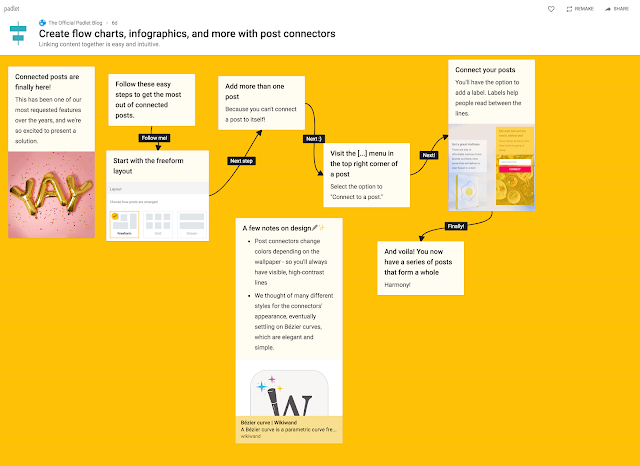
NEW! Connected Posts in Padlet

I was so happy to see that Padlet has included the ability to connect posts in their Freeform Layout.


The connectors are simple, neatly drawn arrows and you have the ability to place a label on them.  It's a great way to create simple flowcharts, infographics and other organizational charts in a collaborative environment.  


You can set one up in just a few easy steps:

1. Start with a Freeform Layout.
2. Make sure you have more than one post on your Padlet.  You do need to connect to something after all.
3. Visit the note's [...] menu and choose to "Connect to a post."
4. Choose which note you will connect and add your label text if needed.

I hope you enjoy using this simple new addition to Padlet and if you haven't tried Padlet yet, then head on over to https://padlet.com/ to learn more and sign up for a free account.


If you have great Padlet ideas for the classroom, please share with me in the comments below.


~Rosie